Using Margin
On Windows, left-click the tray icon (or launch margin.exe again) to open settings. On Linux, run margin settings.
#Edges: slide along them
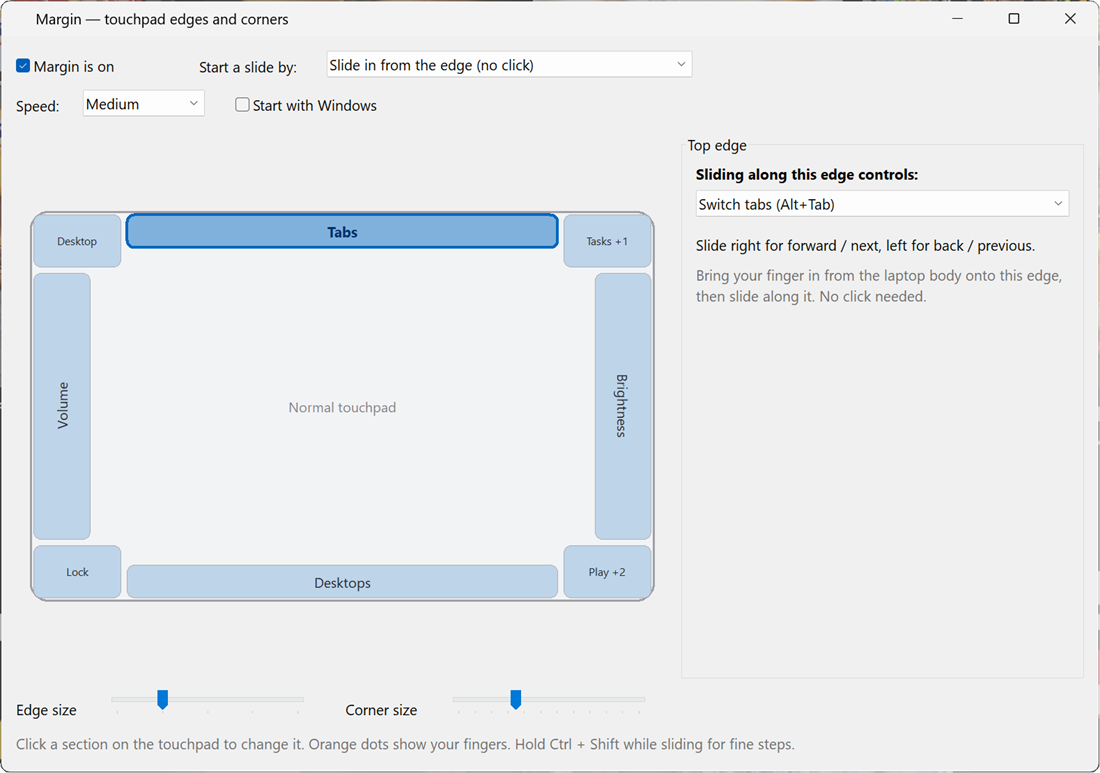
Click an edge on the touchpad map, then choose what sliding along it controls:
| Action | Slide one way | Slide the other way |
|---|---|---|
| Volume | louder | quieter |
| Screen brightness | brighter | dimmer |
| Seek video / audio | forward (shows +10s) |
back |
| Zoom | zoom in | zoom out (Ctrl + mouse wheel) |
| Switch tabs / windows (Alt+Tab) | next window | previous window (the Alt+Tab picker stays open until you lift your finger) |
| Previous / next track | next | previous |
| Switch virtual desktops | desktop to the right | desktop to the left |
| Custom keys | your shortcut | your other shortcut |
Slide up or right for "more / next" and down or left for "less / previous". The Speed setting changes how far you must slide per step. On Windows, hold Ctrl + Shift while sliding for fine steps.
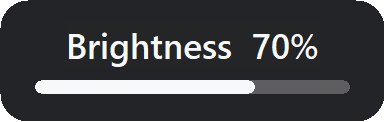
For brightness and seeking, Windows shows Margin's small on-screen display; volume uses the normal Windows volume flyout.
#Two ways to start a slide
Pick one under Start a slide by (Windows; Linux always uses the first):
- Slide in from the edge (default): bring a finger in from the laptop body onto the edge, then move along it. No click. A finger that first lands inside the touchpad, or any two-finger contact, never triggers it.
- Press the edge until it clicks, then slide: rest a finger on the edge, press until the touchpad clicks, and slide without letting go. The hardest to trigger by accident.
On Windows, while a slide runs the pointer stays still and nothing is clicked underneath.
#Corners: press them
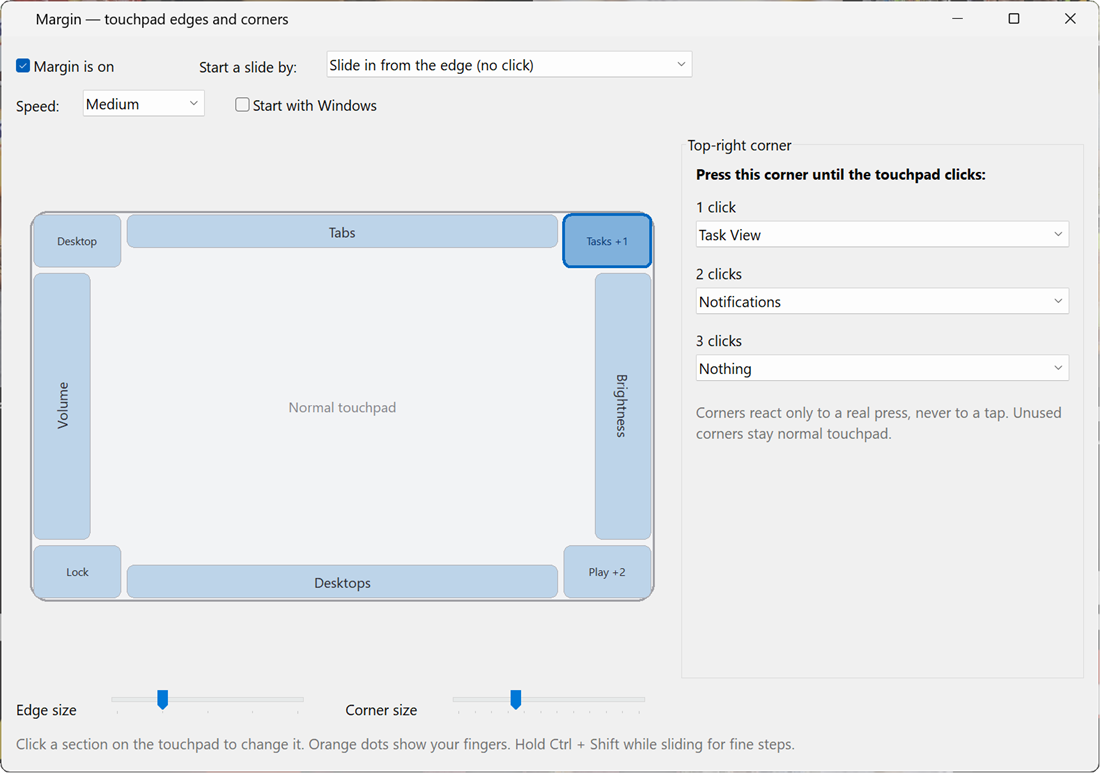
Press a corner until the touchpad physically clicks. Taps are ignored. Each corner can run a different action for 1, 2 or 3 presses:
Mute · Play / pause · Next / previous track · Screenshot · Task View / overview · Show desktop · Lock the PC · Notifications · Open an app · Open a website · Press a shortcut · Run a command · Nothing
#Defaults
- Edges: left = volume, right = brightness, top = switch windows, bottom = switch virtual desktops.
- Corners: top-left = show desktop, top-right = Task View (1 press) / notifications (2), bottom-left = lock, bottom-right = play/pause (1) / next (2) / previous (3).
#Zone sizes
The Edge size and Corner size sliders change how big each zone is. The map always shows the real zones, and everything outside them stays a normal touchpad. On Windows, orange dots on the map show where your fingers are on the pad.